在网页中,一行 window.print() 就能调起浏览器的打印功能。在HTML一键打包APK工具生成的APP中,这行代码同样有效:工具会拦截 window.print() 调用,并转交给安卓系统打印服务。用户可以直接选择打印机打印,也可以”另存为PDF”把页面保存成PDF文件。
如果你不了解HTML打包APK工具, 想要进一步了解, 可以查看官网:
HTML一键打包APK工具官网
创建打印页面
在HTML项目入口目录中创建 index.html,写入以下代码。页面展示一张简单的单据,点击”打印”按钮后调用 window.print() 触发打印。通过 @media print 样式,打印时会自动隐藏按钮等屏幕元素,只保留单据内容。
1
2
3
4
5
6
7
8
9
10
11
12
13
14
15
16
17
18
19
20
21
22
23
24
25
26
27
28
29
30
31
32
33
34
35
36
37
38
39
40
41
42
43
44
45
46
47
48
49
50
51
52
53
54
55
56
57
58
59
60
61
62
63
64
65
66
67
68
69
70
71
72
73
74
75
76
77
78
79
80
81
82
83
84
85
86
87
88
89
90
91
92
93
94
95
96
97
98
99
100
101
102
103
104
105
106
107
108
109
110
111
112
113
114
115
116
117
118
119
120
121
122
123
124
125
126
127
128
129
130
131
132
133
134
135
136
137
138
139
| <!doctype html>
<html lang="zh-CN">
<head>
<meta charset="UTF-8" />
<meta name="viewport" content="width=device-width, initial-scale=1, viewport-fit=cover" />
<title>单据打印</title>
<style>
* {
box-sizing: border-box;
}
body {
min-height: 100vh;
margin: 0;
padding: 20px;
display: grid;
place-items: center;
font-family: 'Microsoft YaHei', sans-serif;
background: #f4f7f5;
color: #17221c;
}
main {
width: min(100%, 440px);
}
.sheet {
padding: 24px;
border: 1px solid #cad4ce;
border-radius: 8px;
background: #fff;
}
h1 {
margin: 0 0 4px;
font-size: 24px;
text-align: center;
}
.sheet-meta {
margin: 0 0 16px;
font-size: 13px;
color: #526159;
text-align: center;
}
table {
width: 100%;
border-collapse: collapse;
font-size: 14px;
}
th,
td {
padding: 8px 6px;
border-bottom: 1px solid #e2e8e4;
text-align: left;
}
th {
background: #eef2f0;
}
.total {
margin-top: 12px;
text-align: right;
font-size: 16px;
font-weight: 700;
}
button {
width: 100%;
min-height: 48px;
margin-top: 14px;
border: 0;
border-radius: 6px;
background: #197447;
color: white;
font: inherit;
font-weight: 700;
}
@media print {
body {
padding: 0;
background: #fff;
}
.no-print {
display: none;
}
.sheet {
width: 100%;
border: 0;
border-radius: 0;
}
}
</style>
</head>
<body>
<main>
<div class="sheet">
<h1>购物清单</h1>
<p class="sheet-meta">单号:20260824001 日期:2026-08-24</p>
<table>
<thead>
<tr>
<th>品名</th>
<th>数量</th>
<th>金额</th>
</tr>
</thead>
<tbody>
<tr>
<td>无线鼠标</td>
<td>1</td>
<td>79.00</td>
</tr>
<tr>
<td>机械键盘</td>
<td>1</td>
<td>299.00</td>
</tr>
<tr>
<td>USB数据线</td>
<td>2</td>
<td>30.00</td>
</tr>
</tbody>
</table>
<p class="total">合计:408.00 元</p>
</div>
<button class="no-print" type="button" onclick="window.print()">打印</button>
</main>
</body>
</html>
|
代码说明:
- 点击”打印”按钮执行
window.print(),这是整个打印功能的核心,不需要引入任何第三方库。
@media print 中定义了打印时的样式,display: none 的 .no-print 元素(按钮等)不会出现在打印内容中。- 单据表格、金额等内容在屏幕和打印中都会完整保留。
打包APK
打开HTML一键打包APK工具,选择包含 index.html 的项目目录,填写应用名称、包名等打包信息。打印功能依赖安卓系统打印服务,无需额外勾选权限,按默认配置打包即可。
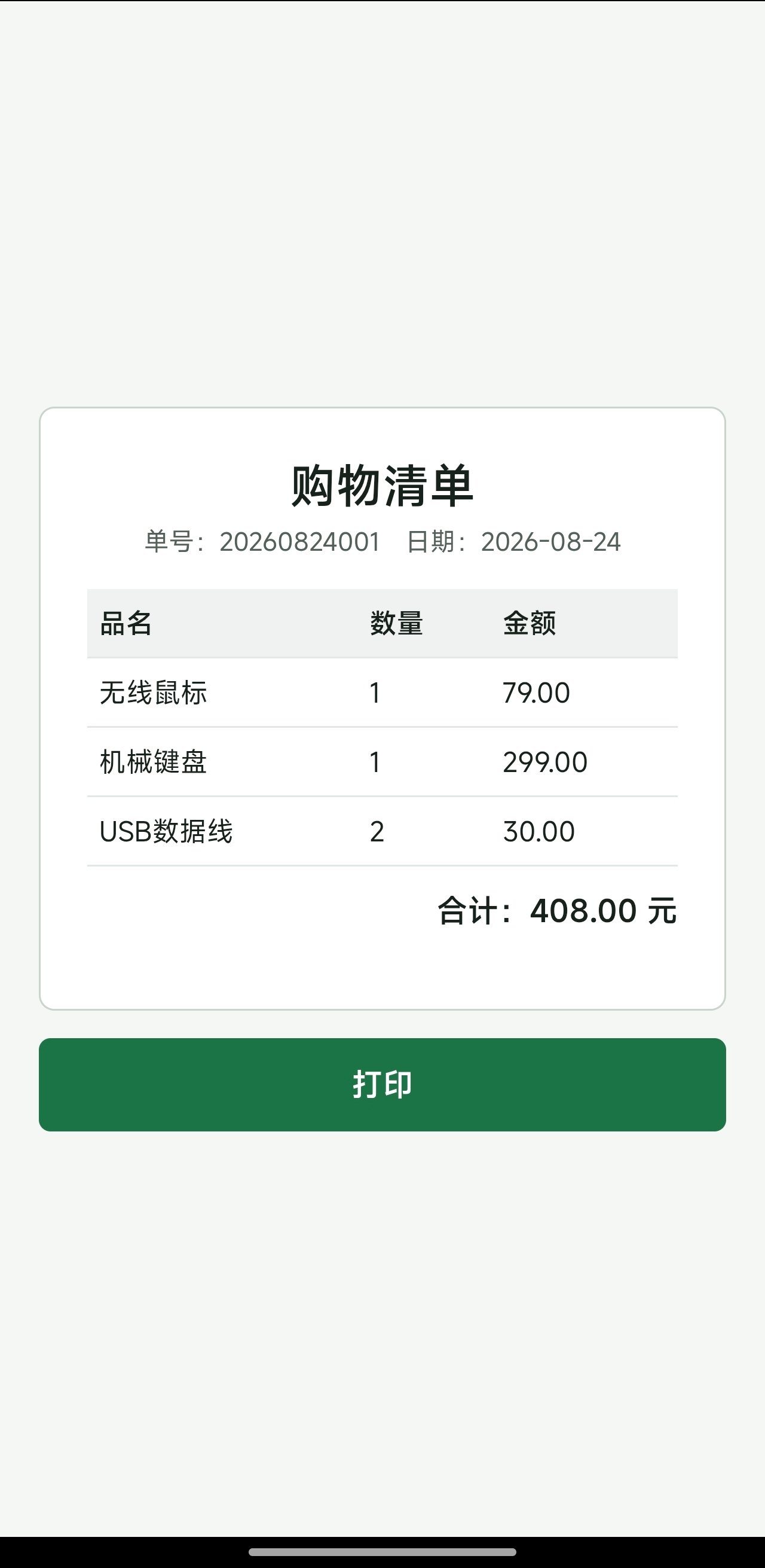
确认配置后开始打包,等待工具生成APK文件。
安装并测试打印
将生成的APK安装到安卓手机,打开APP点击”打印”按钮,系统会弹出打印预览界面。在这里可以:
- 选择已连接的打印机(云打印机、局域网打印机等)直接打印;
- 在打印机列表中选择”另存为PDF”,把页面保存成PDF文件。
保存的PDF文件可以在手机的”文件”应用或相册中找到,方便发送给客户或存档。
常见问题
点击打印没有反应? 请确认手机系统为Android 5.0及以上,旧系统没有内置打印服务。
列表中找不到打印机? 安卓打印服务需要打印机与手机处于同一网络,或打印机已接入云打印服务。也可以直接使用”另存为PDF”,不依赖任何打印机。
打印内容不完整或分页异常? 在 @media print 中适当调整宽度、字号和间距,避免内容超出纸张范围;需要强制分页时,可以在指定元素上添加 page-break-after: always 样式。