在HTML项目中,可以使用 html5-qrcode 调用手机摄像头并识别二维码。完成页面代码后,再通过HTML一键打包APK工具勾选相机权限,即可生成支持扫码的安卓APP。
如果你不了解HTML打包APK工具, 想要进一步了解, 可以查看官网:
HTML一键打包APK工具官网
创建扫码页面
在HTML项目入口目录中创建 index.html,写入以下代码。页面点击“开始扫码”后会申请摄像头权限,识别成功时停止摄像头并显示二维码内容。
1
2
3
4
5
6
7
8
9
10
11
12
13
14
15
16
17
18
19
20
21
22
23
24
25
26
27
28
29
30
31
32
33
34
35
36
37
38
39
40
41
42
43
44
45
46
47
48
49
50
51
52
53
54
55
56
57
58
59
60
61
62
63
64
65
66
67
68
69
70
71
72
73
74
75
76
77
78
79
80
81
82
83
84
85
86
87
88
89
90
91
92
93
94
95
96
97
98
99
100
101
102
103
104
105
106
107
108
109
110
111
112
113
114
115
116
117
118
119
120
121
122
123
124
125
126
127
128
129
130
131
132
133
134
135
136
137
138
139
140
141
142
143
144
145
146
147
148
149
150
151
152
153
154
155
156
157
| <!doctype html>
<html lang="zh-CN">
<head>
<meta charset="UTF-8" />
<meta name="viewport" content="width=device-width, initial-scale=1, viewport-fit=cover" />
<title>二维码扫码</title>
<script src="https://unpkg.com/html5-qrcode@2.3.8/html5-qrcode.min.js"></script>
<style>
* {
box-sizing: border-box;
}
body {
min-height: 100vh;
margin: 0;
padding: 20px;
display: grid;
place-items: center;
font-family: 'Microsoft YaHei', sans-serif;
background: #f4f7f5;
color: #17221c;
}
main {
width: min(100%, 440px);
}
h1 {
margin: 0 0 8px;
font-size: 30px;
}
p {
margin: 0 0 18px;
color: #526159;
}
#reader {
width: 100%;
min-height: 280px;
overflow: hidden;
border: 1px solid #cad4ce;
border-radius: 8px;
background: #101511;
}
#reader video {
object-fit: cover;
}
.actions {
display: grid;
grid-template-columns: 1fr 1fr;
gap: 10px;
margin-top: 14px;
}
button {
min-height: 48px;
border: 0;
border-radius: 6px;
padding: 0 16px;
font: inherit;
font-weight: 700;
}
#startButton {
background: #197447;
color: white;
}
#stopButton {
background: #dfe6e2;
color: #26352d;
}
button:disabled {
opacity: 0.5;
}
#status {
min-height: 24px;
margin-top: 12px;
font-size: 14px;
color: #526159;
}
</style>
</head>
<body>
<main>
<h1>二维码扫码</h1>
<p>点击开始后,将摄像头对准二维码。</p>
<div id="reader" aria-label="摄像头扫码区域"></div>
<div class="actions">
<button id="startButton" type="button">开始扫码</button>
<button id="stopButton" type="button" disabled>停止扫码</button>
</div>
<div id="status" role="status">等待开始</div>
</main>
<script>
const reader = new Html5Qrcode('reader');
const startButton = document.getElementById('startButton');
const stopButton = document.getElementById('stopButton');
const status = document.getElementById('status');
let isScanning = false;
let resultHandled = false;
async function stopScanning() {
if (!isScanning) return;
await reader.stop();
isScanning = false;
startButton.disabled = false;
stopButton.disabled = true;
status.textContent = '扫码已停止';
}
async function startScanning() {
startButton.disabled = true;
status.textContent = '正在请求摄像头权限...';
resultHandled = false;
try {
await reader.start(
{ facingMode: 'environment' },
{ fps: 10, qrbox: { width: 240, height: 240 } },
async decodedText => {
if (resultHandled) return;
resultHandled = true;
await stopScanning();
alert(decodedText);
},
() => {}
);
isScanning = true;
stopButton.disabled = false;
status.textContent = '正在扫描...';
} catch (error) {
startButton.disabled = false;
status.textContent = '无法打开摄像头,请检查相机权限。';
console.error(error);
}
}
startButton.addEventListener('click', startScanning);
stopButton.addEventListener('click', () => {
stopScanning().catch(console.error);
});
window.addEventListener('pagehide', () => {
if (isScanning) reader.stop().catch(() => {});
});
</script>
</body>
</html>
|
示例通过 CDN 加载 html5-qrcode。如果APP需要完全离线运行,请提前下载 html5-qrcode.min.js 放入项目目录,并将页面中的脚本地址改为本地相对路径。
打包APK并勾选相机权限
打开HTML一键打包APK工具,选择包含 index.html 的项目目录,填写应用名称、包名等打包信息。在权限设置中勾选“相机权限”,否则APP无法调用手机摄像头。
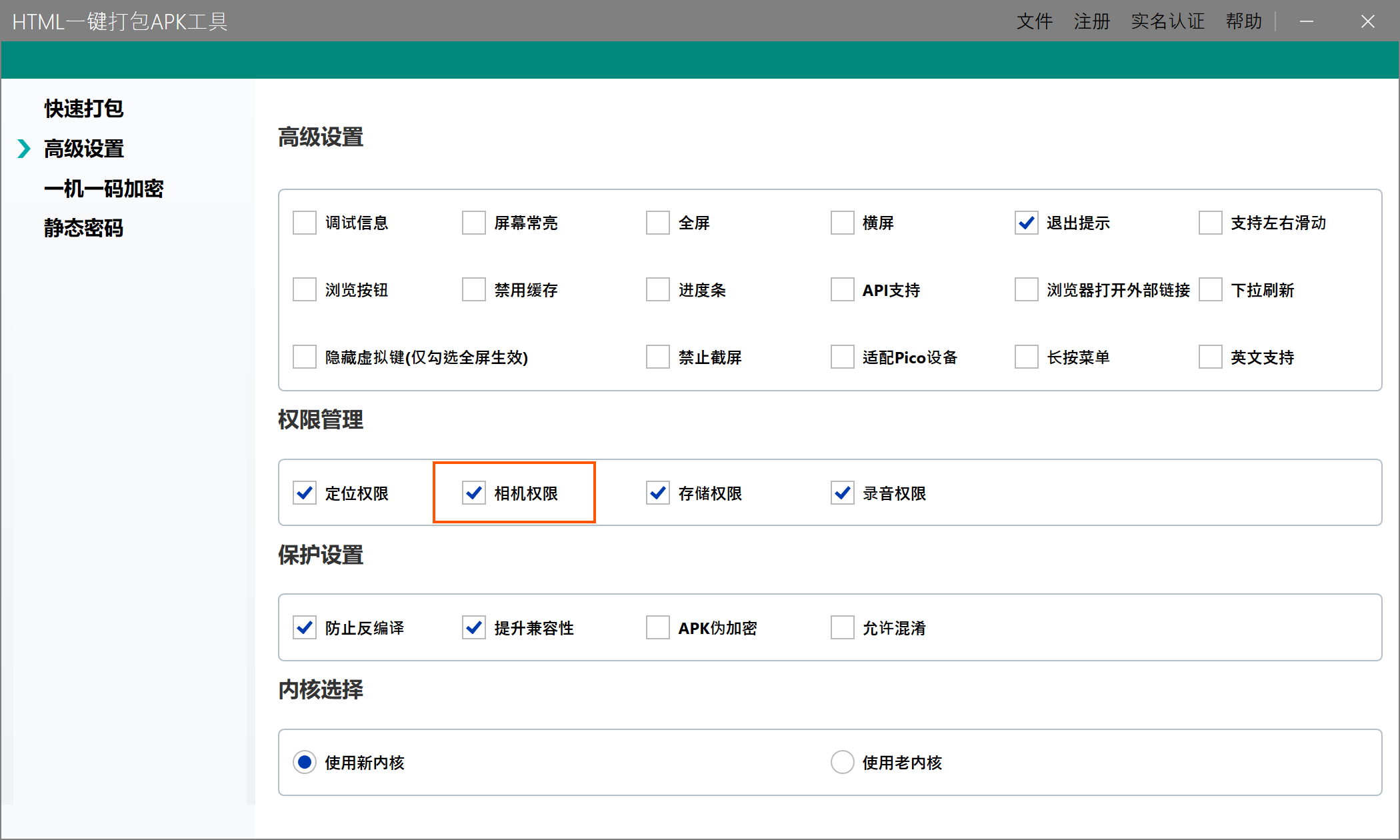
确认配置后开始打包,等待工具生成APK文件。
安装并测试扫码
将生成的APK安装到安卓手机。首次点击“开始扫码”时,系统会弹出相机授权提示,选择允许后,将摄像头对准二维码。识别成功后,页面会停止扫描并弹出二维码中的文字或链接。
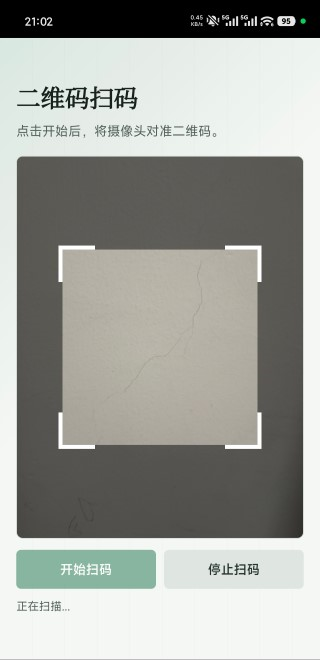
如果页面提示无法打开摄像头,请先在手机的应用权限设置中确认相机权限已经允许。扫码页面使用 CDN 脚本时,还需要确保手机能够正常访问网络;改用本地脚本后则不受此限制。